How do I set up service points (desks)?
Last updated July 18, 2026
Service points are the desks and roles you schedule people onto — Circulation, Information, Reference, Shelving, Children's, the Bookmobile, and so on. During setup Kickstool offers common presets (Information and Reference come as separate desks — pick just one if your library combines them), and you can add your own anytime.
- Go to Settings → Service points.
- Add a service point with a name, category, and color.
- Assign it to one or more locations, and set requires coverage with a minimum number of staff if it needs to be staffed.
Tip
Group related desks into departments (optional) so staff can filter the schedule to just their area and save it as their default view. How-to below.
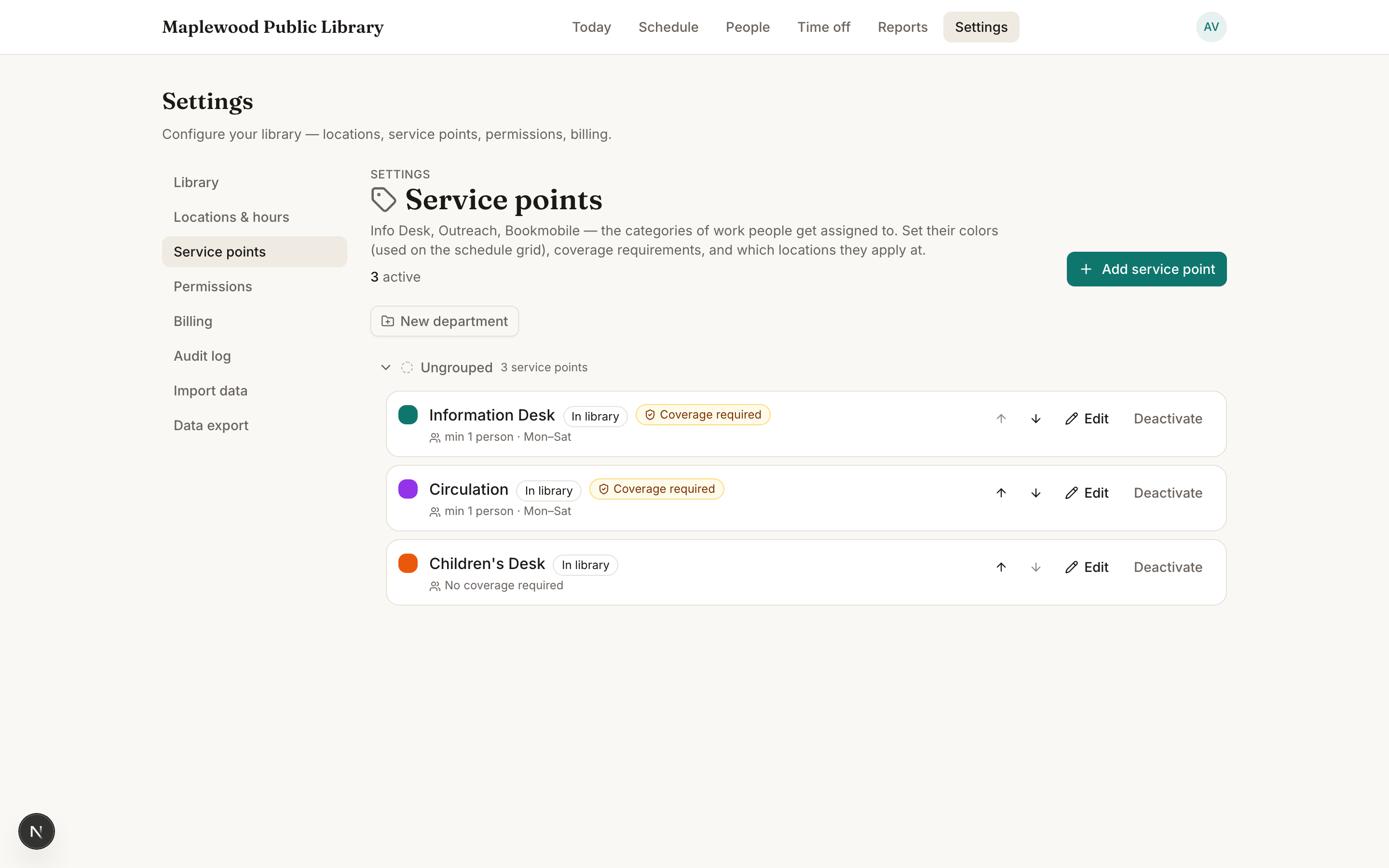
The requires coverage setting is what powers the green/amber/red coverage chips — without it, Kickstool doesn't know a desk needs staffing.
Grouping desks into departments
Departments are optional groupings — Circulation, Youth Services, Technical Services — that power the schedule's department filter, the section headers on this settings page, and each person's saved "my view."
- Open any service point (or add a new one) and find the Department field.
- Pick an existing department, or choose + New department… and type a name — it's created on the spot.
- Back on the list, each department header has a color, reorder arrows, and an options menu for renaming or removing it.
Removing a department never deletes anything — its service points just become ungrouped. During setup, the preset desks come with sensible department suggestions (Circulation, Reference / Adult Services, Youth Services, and so on), so most libraries only fine-tune rather than build from scratch.
Retiring a service point
When a desk or role is no longer part of your schedule, deactivate it rather than trying to delete it — past schedules and reports keep their history either way.
If the service point still has upcoming assignments or recurring shifts, Kickstool shows you exactly how many and offers to move all of that upcoming work to another service point in one step. You can also deactivate without moving anything, but note what that means: the upcoming blocks stay on the schedule under a retired point, and its recurring shifts keep creating more — so moving the work first is almost always what you want.
Deactivated service points can be reactivated anytime from the same page.