How do I rebuild a desk rotation?
Last updated August 4, 2026
Use Rebuild desk rotation when a permanent change affects several people at once — for example, when a new team member changes how a department covers its desks. It is a different view of the recurring desk assignments you already have. Every-other-week shifts show up as their own rows, labeled with their weeks. How those alternating rows work has the details.
When not to use this tool
For coverage, time off, or a short-term adjustment, edit the affected shift on the schedule. For one person's usual ongoing hours, create or edit a recurring shift. Rebuild desk rotation is only for a permanent multi-person reassignment.
- Open Schedule → Tools → Rebuild desk rotation. Choose the department whose regular desk assignments are changing. The page keeps one-off shifts out of the grid.
- Rearrange who covers each desk on each day, and pick an Effective from date. Everything before that date stays exactly as it is.
- Press Review changes on the bar at the bottom to see each person's week, before and after, while you work. Press Apply when it looks right. Nothing changes until you confirm.
Tip
Assigning one person a long stretch? Pick them for the first hour, then hold Shift and click the last hour. Every hour in between gets the same person. It works across a row of days too, and Discard changes undoes it.
Tip
Off-desk time is safe here. If someone is on shift 9–5 but only at a desk 10–12, moving or removing their desk time never shortens their shift. They stay scheduled 9–5, just not at that desk. Cells like that show a small "on shift" label so you can tell at a glance.
Choosing a department
If your library has more than one department set up, the grid stays empty until you pick one: "Choose one department to begin." Pick from the Which department are you rebuilding? dropdown, and only that department's desks load. Desks that are not in any department show up together as Other desks.
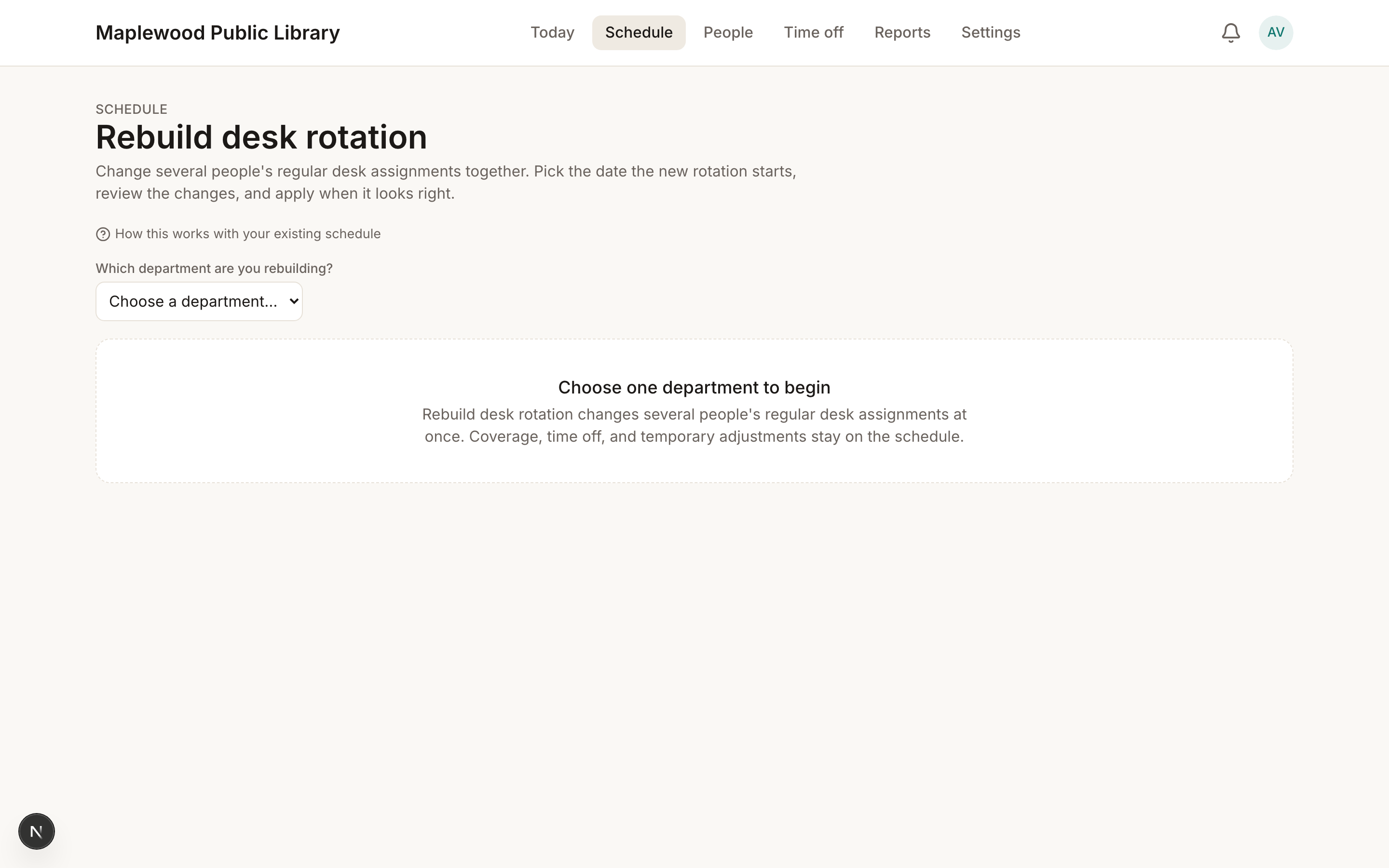
This is not just a filter. Only the desks in the department you picked can be changed from this page — a real boundary, not a view you could accidentally scroll past. If your library only has one department (or none set up), it is chosen for you automatically and you go straight to the grid.
Reading the grid like a diff
The grid always shows you what you are changing, not just the end state.
- Changed cells show the old name crossed out, like "was Maya", so you can see what you are replacing. A cell that was empty needs no reminder.
- Each desk's header counts the edits you have made inside it, even when the desk is collapsed.
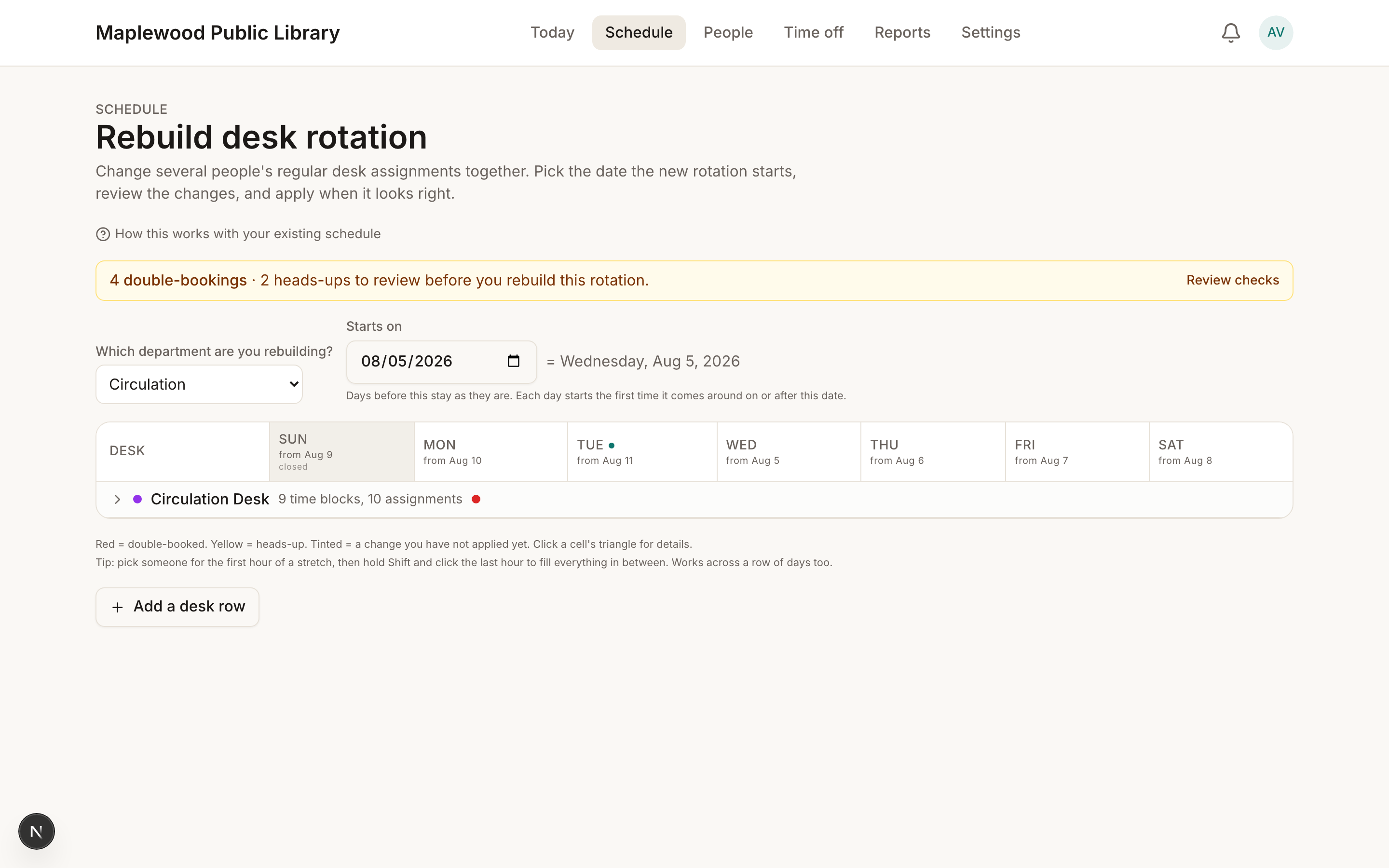
- The day columns are real dates. Pick Saturday, Aug 15 as the start date and the Saturday column starts that day. The Sunday column starts the next day, Aug 16.
- Anything worth a look before you apply starts collapsed into one line, like "4 double-bookings · 2 heads-ups to review before you rebuild this rotation." Press Review checks to open it into one card per person. Every card and button in it is explained in What do the warnings in Rebuild desk rotation mean?
If you change your mind
Right after you apply a pattern change, the confirmation message has an Undo button that puts everything back the way it was. Undo works as long as nobody has edited those shifts since. After that, adjust from the schedule like any other week.
Good to know
- A day someone hand-edited is never deleted by an apply. The pattern changes around it. Canceled days stay canceled.
- If you remove someone from the pattern, they still work their already-scheduled days until the start date. The pattern stops after that.
- A pattern you have not touched keeps its own start date. Only the patterns you edit move to the date you picked.
- Time off during the pattern shows up as a heads-up with a Find cover button. How do I find cover when someone is out? walks through it.