What do the warnings in Rebuild desk rotation mean?
Last updated August 4, 2026
Every warning in Rebuild desk rotation is one of two kinds. A red Double-booked means the rotation would put one person in two places at once, and it needs a decision. A yellow Heads-up is something worth knowing that you can dismiss with Got it. This page lists every card the panel can show. Find the one on your screen.
Note
Nothing on this page changes the schedule until you press Apply. Every button on every card only stages a change. Warnings never block Apply. You decide.
How the panel works
The panel starts collapsed into one line, like "4 double-bookings · 2 heads-ups to review before you rebuild this rotation." Press Review checks to open it. It also opens on its own the moment you make an edit.
Open, it shows one card per person. The header says how many people there are to look at, with arrows to step through them and a name list to jump straight to someone. A red dot next to a name means a double-booking. A yellow dot means only heads-ups.
Each warning on a card shows a small picture of that person's day as two bars. The top bar is what is already on their schedule. The bottom bar, labeled This pattern, is what the pattern would add. When the two bars overlap, you can see the collision without leaving the page.
Stepping between people never moves the page. Show me is the button that jumps down to the grid cell the warning is about.
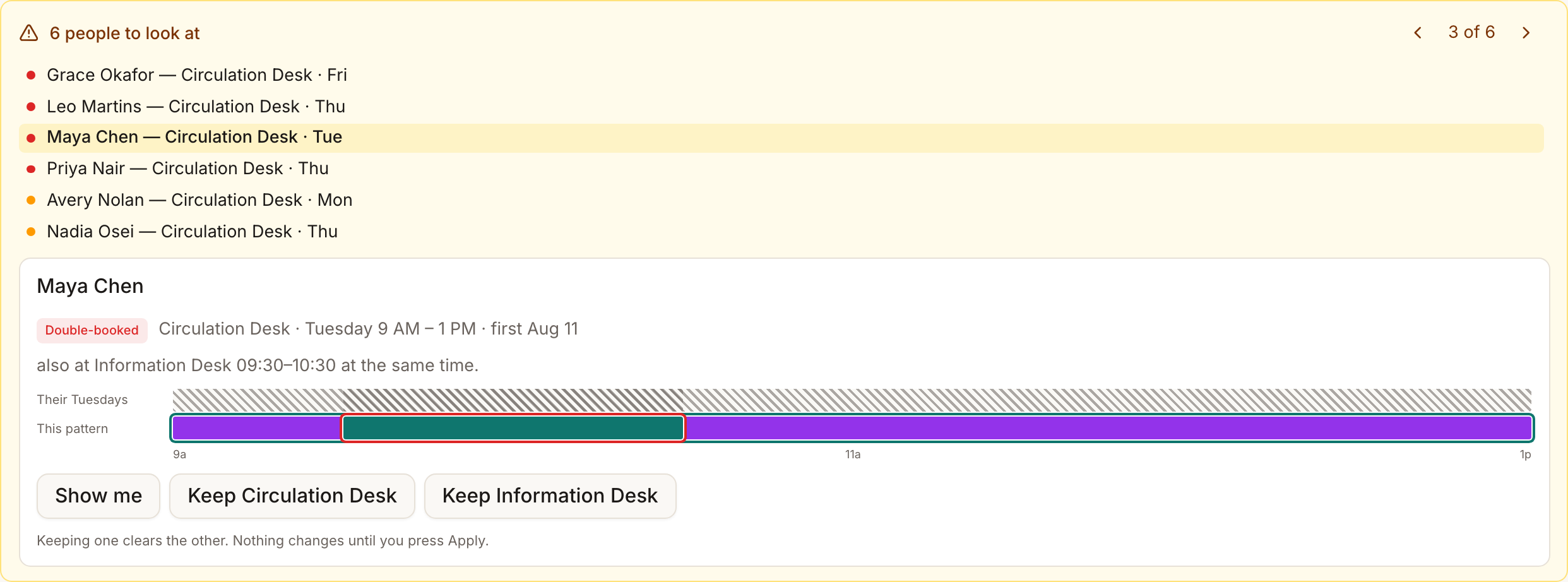
Two cells are red
The card says someone is also at another desk at the same time, or also in another row at this desk, and both grid cells have turned red.
The same person is in two cells that cover the same time on the same day. Press Show me to see the cell, then keep one side. The buttons are named after the desks, for example Keep Info Desk and Keep Outreach. Keeping one clears the other. You never have to edit both cells, and the page will not let you fix it twice by accident.
What does not happen: nothing is removed from the live schedule. The cleared cell is only staged, and Discard changes brings it back.
"6 warnings are collisions with days already on the schedule"
A blue card at the top of the panel, with a button like Start Aug 12 instead.
This appears when your chosen start date runs into days that were already scheduled by hand. Say Maya's first week was entered shift by shift, and the pattern starts inside that week. Every one of those days would collide. The one button moves the start date past them, and the card says exactly how many warnings that clears. Those hand-made days stay exactly as they are. The pattern simply takes over after them.

"Their Aug 9 shift already includes this desk time"
The full wording is their Aug 9 shift already includes this desk time. Applying adds a second shift that day.
The day is already right. It was made by hand and it already contains everything the pattern would add. If you apply anyway, that day gets the shift twice. The fix is to start the pattern after that day, not to clear the cell. Clearing takes the person out of the repeating slot from the start date on, every week, which is almost never what you want for a one-day overlap.
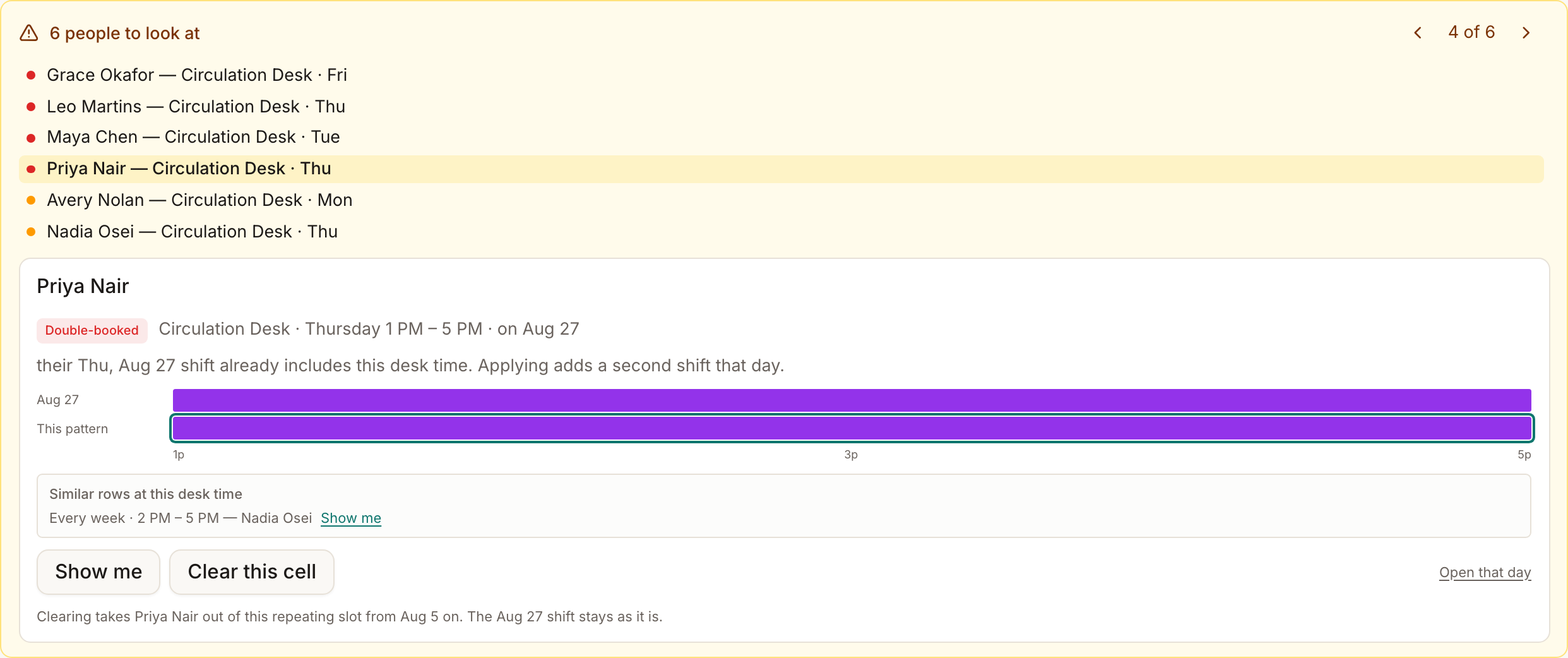
"These 8 warnings are one thing" — a pattern recorded twice
The card says someone's day exists twice, every week, and every other week, and that the desk times are the same. If the copies differ slightly, it lists the difference.
This almost always comes from the same schedule being entered twice, once as a weekly pattern and once as an every-other-week one. The panel folds all the resulting collisions into this one card instead of one warning per hour. If the extra copy should not exist, delete it from the schedule page. The card's link, for example See Maya's Thursday, Aug 13, opens a day where both copies appear so you can see them side by side.
What does not happen if you clear cells here instead: clearing removes the desk times but keeps the copy's shift hours, so the duplicate shift would still exist. Deleting from the schedule is the real fix.
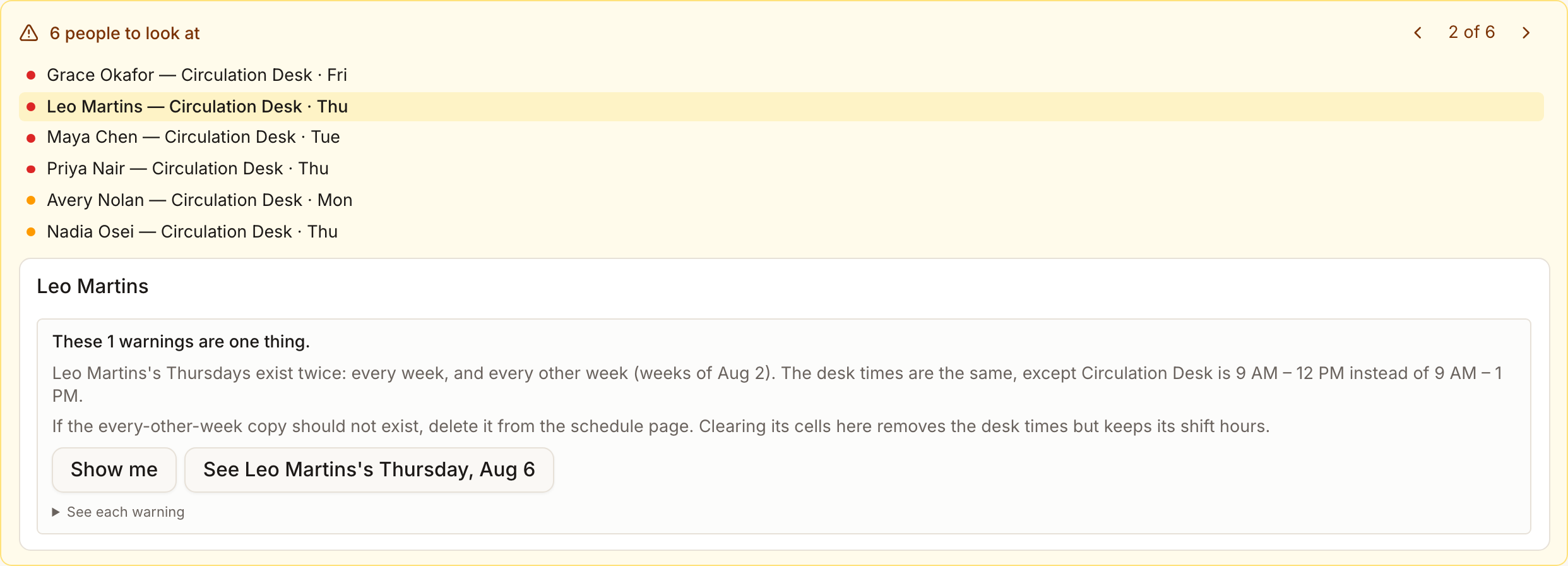
"These 4 warnings are one thing" — a day scheduled twice
The card says a specific date is already scheduled by hand, and that day already includes these desk times. If nothing changes, that day gets each shift twice.
Same idea as above, but for a single day instead of a whole repeating copy. The buttons are in the recommended order: Look at Aug 22 first opens that day on the schedule with that person already searched, so you can see what is really there. Then Start Aug 23 instead moves the pattern past it. Clearing cells here would take the person out of the pattern from the start date on, not just that day.
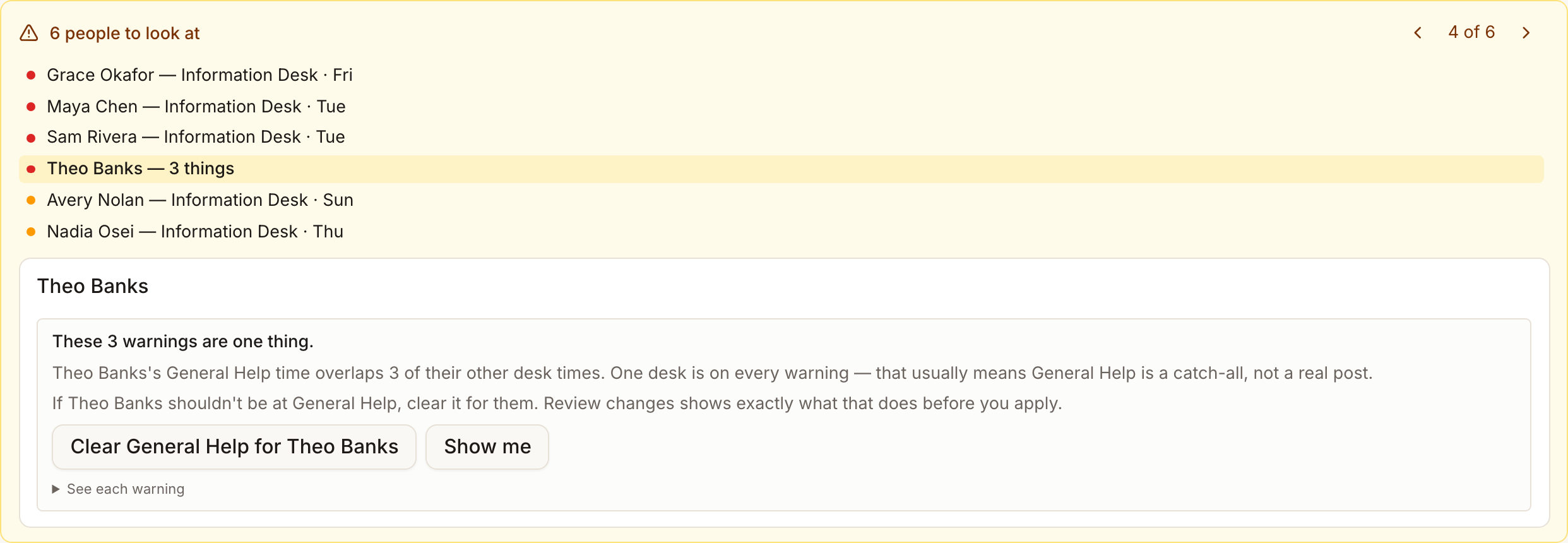
"One desk is on every warning"
The card says a desk's time overlaps their other desk times. One desk is on every warning — that usually means it is a catch-all, not a real post.
Some schedules have a desk like "Work" that just means "in the building", layered under real desk assignments. Every real desk then collides with it. If the person should not be at that desk, the one button, for example Clear Work for Maya, empties their cells at that desk in one click. Review changes shows exactly what that stages before you apply.
"3 warnings involve Reference Annex, an inactive desk"
A card at the top of the panel about a desk that has been deactivated in settings but still has people assigned in the pattern.
Clear Reference Annex empties everyone out of that desk's cells in one click. Like every action here, it only stages the change.

Time off
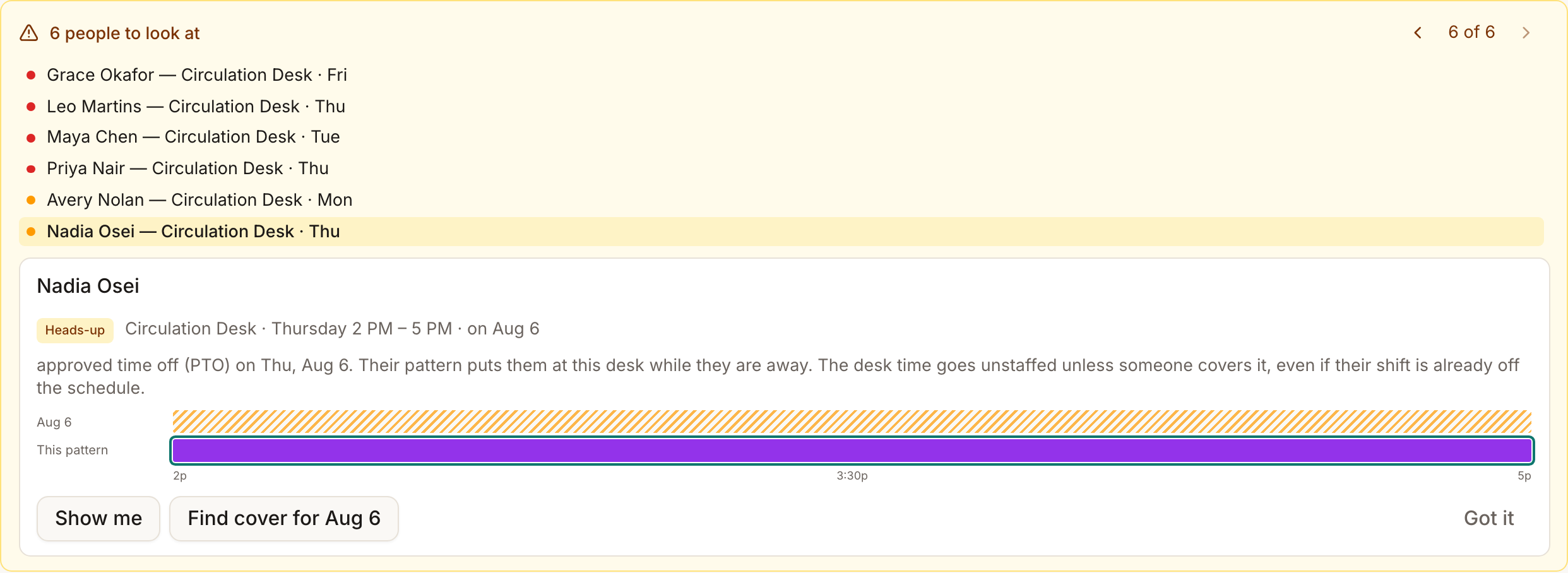
A yellow Heads-up reading approved time off (PTO) on Aug 6, followed by this explanation: their pattern puts them at this desk while they are away, and the desk time goes unstaffed unless someone covers it, even if their shift is already off the schedule.
This is a heads-up about the pattern, not a double-booking. Two buttons: Find cover for Aug 6 opens that day on the schedule ready to cover, and Got it dismisses the heads-up once you have seen it. The full cover flow is in How do I find cover when someone is out?.
The library is closed that day
The wording is the library is normally closed this day of the week. The pattern has someone scheduled on a closed weekday. No shifts are created on closure days, so this is a heads-up that the cell will never produce a shift, not an error.
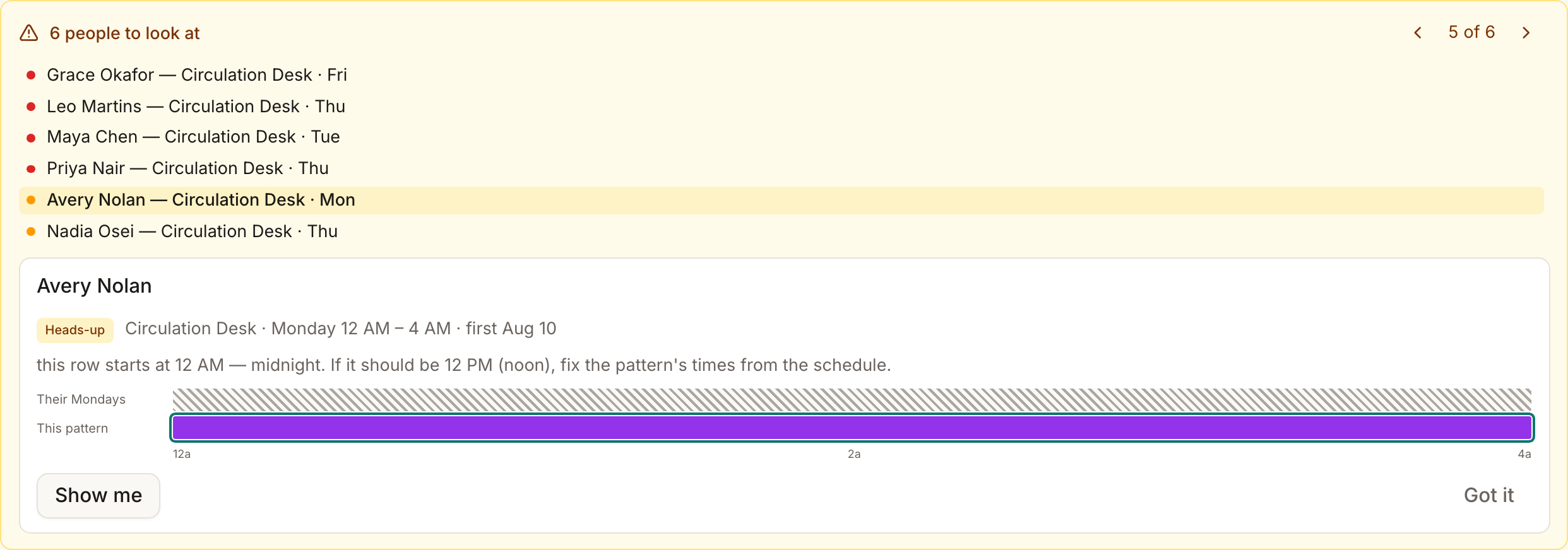
A row starts in the middle of the night
The wording is this row starts at 12 AM — midnight. If it should be 12 PM (noon), fix the pattern's times from the schedule.
A 12 AM start is almost always a 12 PM that got typed as AM. The times belong to the underlying repeating shift, so the fix happens on the schedule page, not in this grid. Once fixed, the warning goes away on its own.
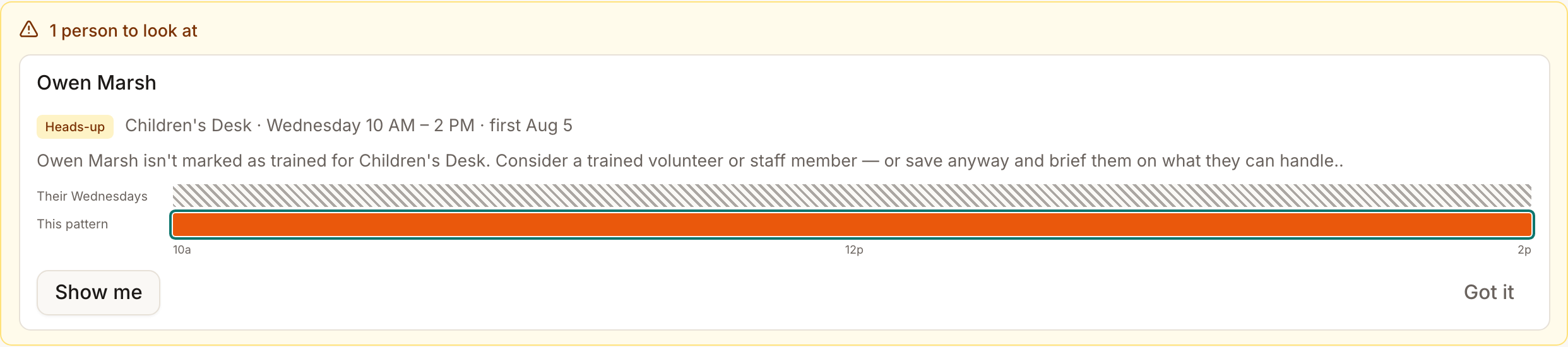
"Someone isn't marked as trained for this desk"
A heads-up when a volunteer is placed at a desk that requires training and they are not marked as trained. Mark them trained on the People page, pick someone else, or dismiss it if you know it is fine.
"The other pattern repeats on a longer cycle"
Monthly and other longer-cycle patterns are not rows in this grid, so when one collides the card says the other pattern repeats on a longer cycle, so this grid can't edit it. You can clear this grid's cell, or edit the longer-cycle pattern from the schedule page.
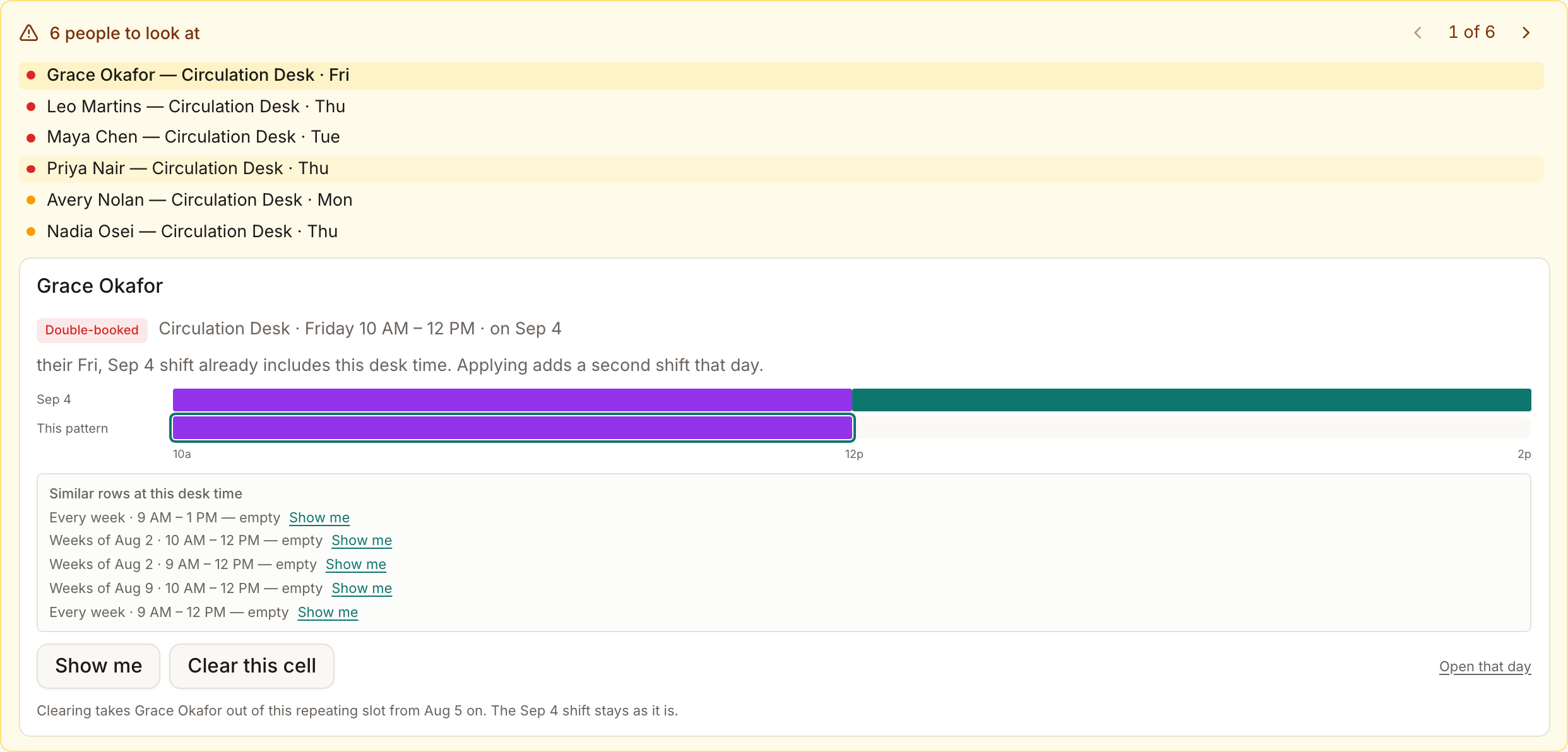
"Similar rows at this desk time"
A small list inside a double-booking card, showing every row of that desk that shares the time. Each line names the row's weeks, its times, and who is in it, for example "Weeks of Aug 2 · 9 AM – 12 PM — Maya" or "Every week · 9 AM – 12 PM — empty", with its own Show me.
It appears when the collision is between rows of the same desk, because then the right fix depends on the whole family. An empty every-other-week row is often the answer: move one copy of the person there and both weeks are covered with no collision.
Got it, and the green all-clear
Got it hides a heads-up on this browser only. It does not change the schedule, and a teammate reviewing on their own computer will still see it. Double-bookings cannot be dismissed.
When there is nothing left to look at, the panel turns green: No double-bookings or heads-ups. You're clear. If you dismissed heads-ups along the way, the green line says how many are hidden, so a clear panel never silently hides history.
Screenshot: The green all-clear line with a dismissed heads-up noted