How do I invite a manager and assign their branches?
Last updated September 18, 2026
Choose Manager and select Branches this manager can edit when you invite someone. Their branch access takes effect when they accept the invitation.
You need an Owner or Admin role to invite managers or change their access.
- Open People → Add person and enter their name and email address.
- Choose Manager as their role.
- Under Branches this manager can edit, select each branch they will schedule. Choose at least one active branch.
- Review the selections, then use Add & invite to send the invitation.
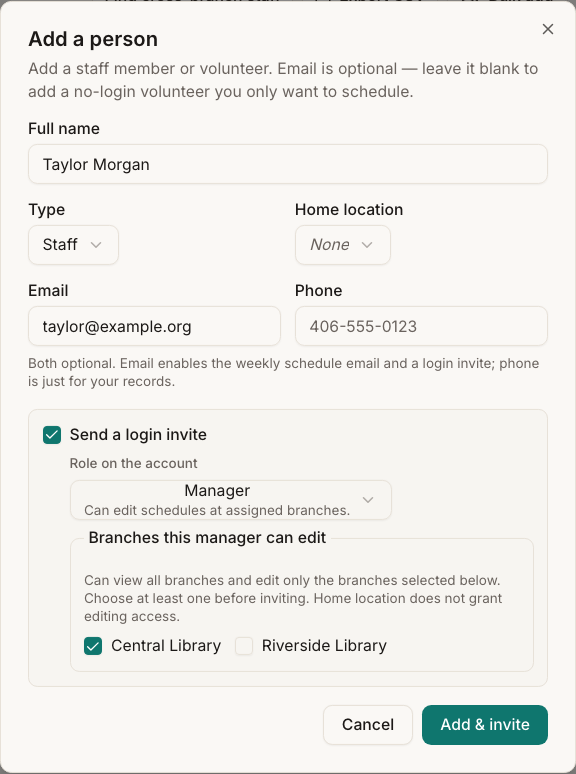
If your library has only one active branch, it is selected for a new manager automatically. With multiple branches, choose the branches explicitly. The manager invitation controls also appear when adding people in bulk or importing your team.
What will the manager see?
Managers can see other branches' schedules to coordinate shared staff. They can edit only their assigned branches. Owners and admins retain access across the library.
When a manager has no saved view, Today and Schedule start with their assigned active branches. They can use Work branches to look elsewhere without changing their permissions.
Note
Changing an entire shift that spans multiple branches requires access to every affected branch. If a change is read-only, ask an admin or a manager with the necessary branch access to make it.
Change an existing manager's access
Open Settings → Permissions, find the manager's branch access controls, select or clear branches, and click Save branches. You can also edit a linked person's role and branch access from People.
People shows a Can edit summary beside the manager's access details. Clearing all branches for an existing manager leaves them with read-only branch access.
A person's Home location does not grant editing access. Assigning a new home location does not move their manager permissions with them.
Fix an invitation before it is accepted
Review the pending invitation from People and update its manager branch selections. An older invitation with no valid branches, or an invitation whose branches have since been deactivated, needs an admin to correct those selections before the manager can join.
Your first visit as a manager
A welcome card lists the active branches you manage. Choose Open my branches to go straight to their schedule, or How manager access works to revisit this guide. Got it dismisses the card for your login in this browser. If your assigned active branches change, the card appears again with the new scope.
Branches you cannot edit show View only. Open that label for an explanation of who can make changes. You can still look at the branch to coordinate shared staff, and your permitted personal self-service actions remain available.