How do I work with schedules across multiple locations?
Last updated September 18, 2026
Use the Work branches filter (shown as All branches when everything is selected) on Today or Schedule to focus on the locations you need. The filter follows where work is scheduled, rather than a person's home location.
- Open Today or Schedule.
- Use Work branches to select one or more locations, or choose All branches.
- If you have editing access, click Save as default to reuse that selection in this browser.
- Change the filter whenever you need to coordinate with another branch. Your saved default stays available through Back to my branches.
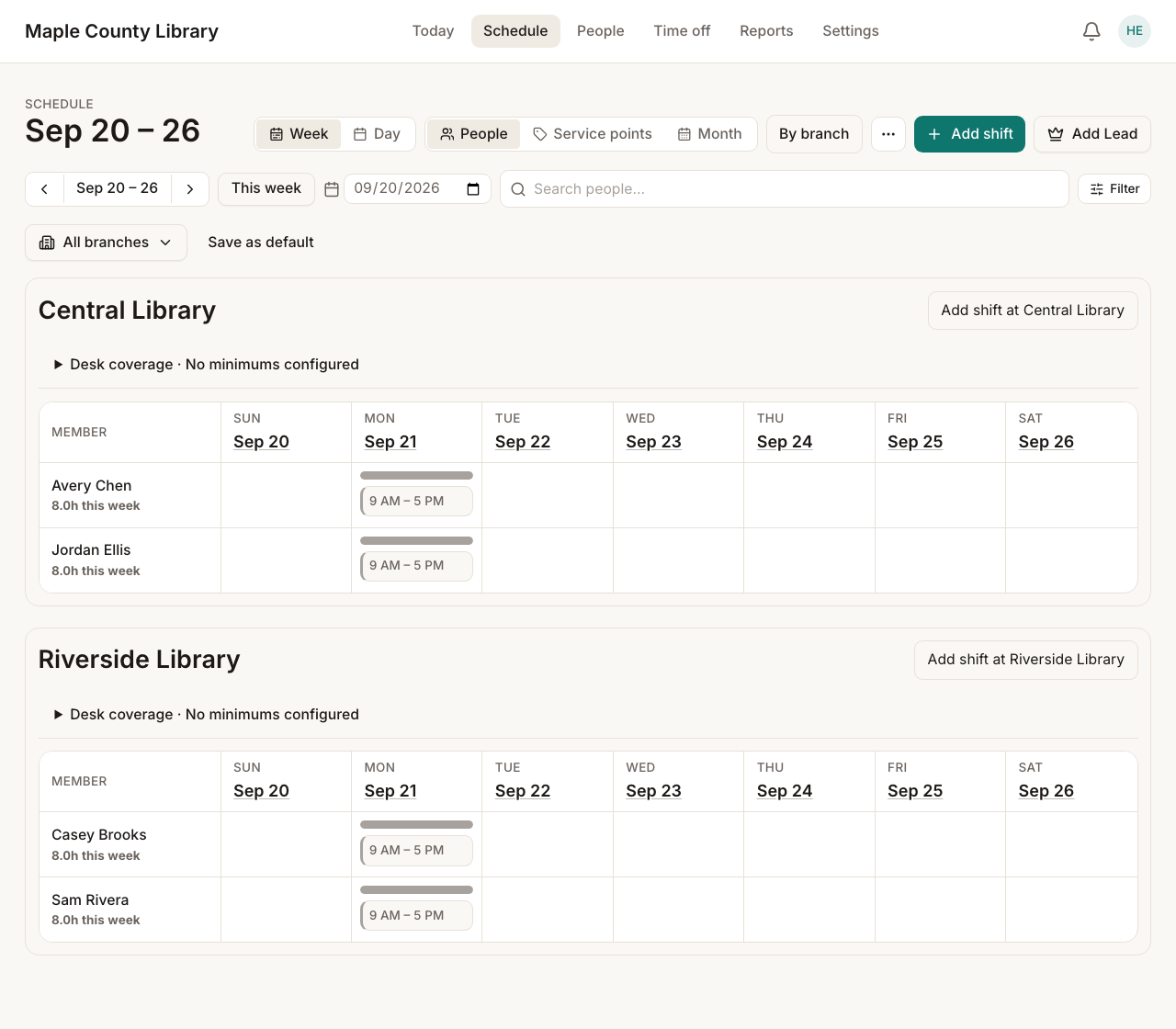
How your starting view is chosen
A branch selection in the page link takes priority. Otherwise, Kickstool uses your saved default. If you are a manager without a saved default, it starts with your assigned active branches; owners and admins start with all branches.
Remove default clears the saved choice. Defaults belong to your account and login in this browser, so you may need to save your preferred view again on another device.
Note
Filters change what you are looking at, not what you can edit. Managers can view other branches for coordination; editing still depends on assigned branch access.
Collapse locations on Today
Click a location's name or arrow to collapse its board. Use Collapse all for a compact overview or Expand all to reopen the visible locations.
The header keeps its people and shift counts, coverage summary, and any closure notice visible. Your collapsed locations are remembered for your login in this browser.
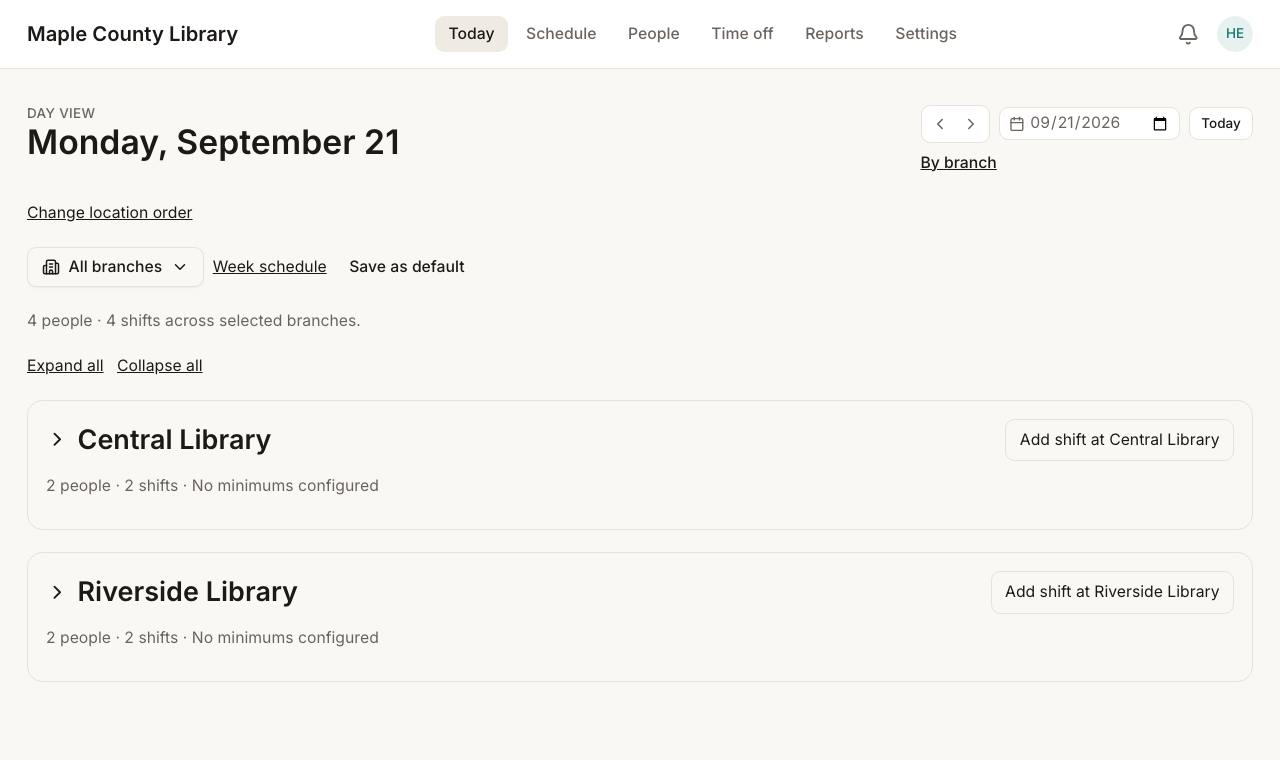
No minimums configured means staffing targets have not been set; it does not mean coverage has been checked and found sufficient. Expand a location and open Desk coverage to review its configured minimums and any gaps.
Read work that crosses branches
A person may appear under more than one branch if they work at several locations that day. Branch sections show their work at that location; opening a shift shows the full shift. Weekly hours include work across branches.
Unspecified work branch is work without an assigned destination. Review it when setting up your locations so it can be placed at the right branch. Library-wide lead duties and time off remain visible separately because they apply across branches.
To change the shared location order, ask an admin to use the up and down arrows in Settings → Locations & hours.