How do I create a shift?
Last updated August 10, 2026
You build the schedule one shift at a time on the Schedule page. A shift is one person's block of work time — it can cover a single desk the whole way, or several desks in a row (circulation in the morning, reference after lunch) inside the same shift.
- Open Schedule and find the day you want.
- Click an empty slot (or the Add shift button).
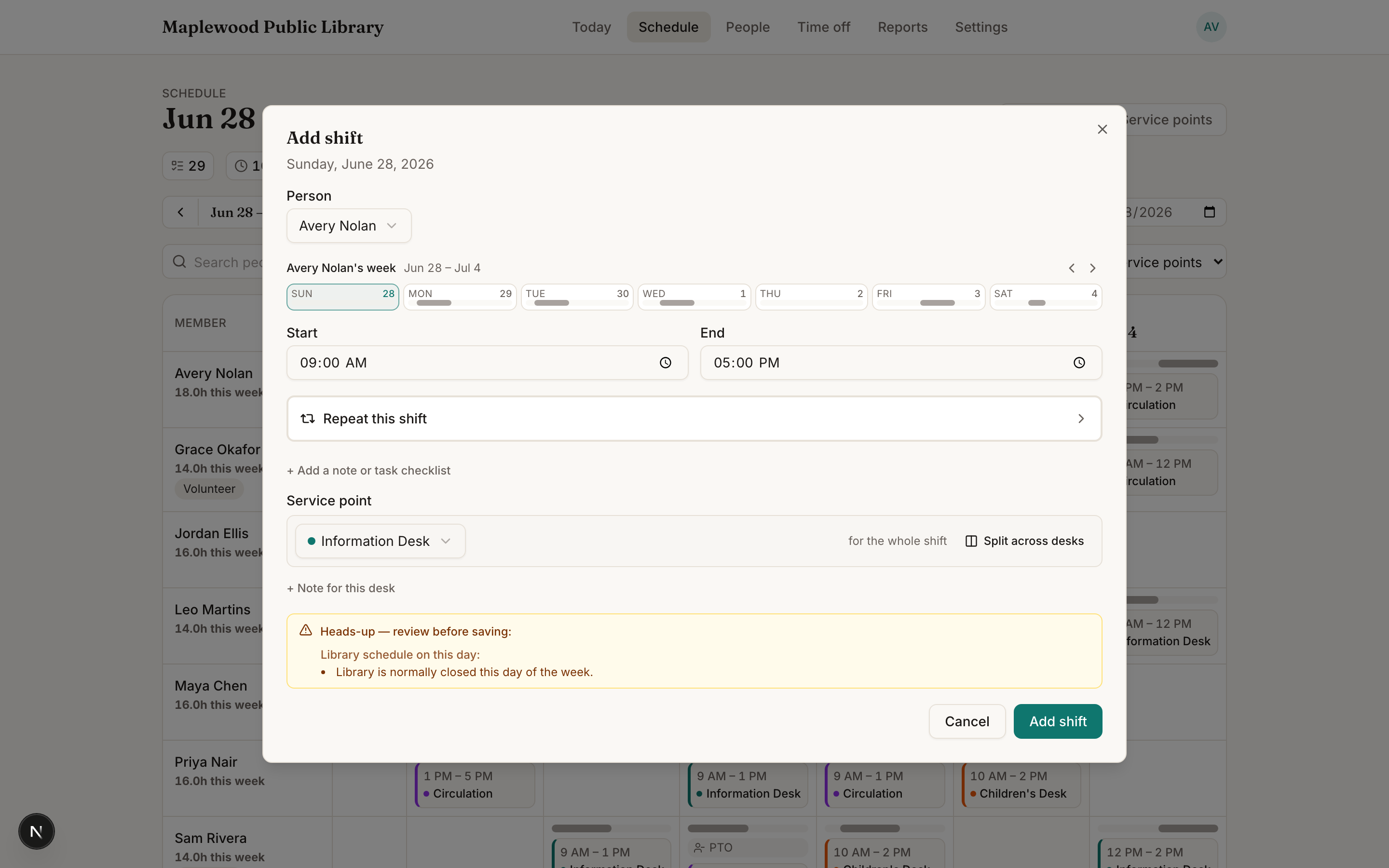
- Choose the person, the service point (desk), and the start and end time.
- Save. The shift appears immediately for everyone viewing the schedule.
Tip
Need the same shift every week? Don't add them one by one — set it up once as a recurring shift.
Not every shift is at a desk
Staff don't have to be at a service point. For office time, prep, projects, or any behind-the-scenes work, click "Or schedule them off desk" under the desk picker (or choose Off desk in the dropdown). The shift still shows on their schedule — it just doesn't count toward desk coverage.
If your library schedules a lot of a specific kind of off-desk work and wants it visible on the board by name, create a service point for it (like "Office / Prep Time") under Settings → Service points — those render with a hollow dot everywhere so they never read as public-desk coverage.
Give the desk just part of the shift
A desk assignment defaults to running the whole length of the shift. If the desk time is actually shorter — say the shift is 9 AM–5 PM but the desk is only needed 9–12 — narrow it right on that row: its own From and To fields are editable directly, so you don't need to add a second desk and delete it afterward to get there.
One person, several desks — in one shift
If someone works 9–5 but moves between desks during the day, don't create a separate shift for each desk. Keep it as one shift and give it a desk for each stretch of time:
- In the shift dialog, click Add another desk during this shift under the service point.
- A timeline appears with the day split into blocks — one per desk. Drag a block's edges to set when each desk starts and ends, or use Even split.
- Add as many desks as the day needs with Add on desk time this shift. Each block can carry its own note.
- Save. The schedule shows one shift with the desk-by-desk breakdown, and each desk's coverage counts correctly.
Why it matters: one shift means the person's day reads as one block on their schedule (and in their calendar sync), coverage counts don't double-count them, and editing their day is one click instead of five.
When separate shifts ARE right: a real break in the day — someone works the morning, goes home, and comes back in the evening. Different arrival and departure = different shifts.
Kickstool warns you about conflicts
If the person is already booked, is on approved time off, or the library is closed that day, you'll see a warning before you save — so double-bookings and closed-day mistakes get caught early. If you start a shift that overlaps one the person already has, the warning also offers to open that existing shift so you can add a desk to it instead of stacking a second shift.
Editing or removing a shift
Click any existing shift to change its time, person, or desk, or to cancel it. For a recurring shift you'll be asked whether the change applies to just this one or all future occurrences. For a quick move, resize, or handoff without opening the dialog at all, see Day view.