How do I drag and drop shifts in Day view?
Last updated August 10, 2026
Day view turns a single day into a drag-and-drop board: one person per row, all sharing the same time axis. Drag a shift to move it, drag an edge to resize it, drag on empty space to create one, or drop it on someone else's row to hand it off — no dialog, no dropdown.
- On the Schedule, click any date header on the week grid. Or from Today, click the edit icon on Coverage at a glance.
- Day view opens with everyone scheduled that day as a row, their shifts laid out on the time axis.
- Drag any shift block to try it out — the change saves the moment you let go.
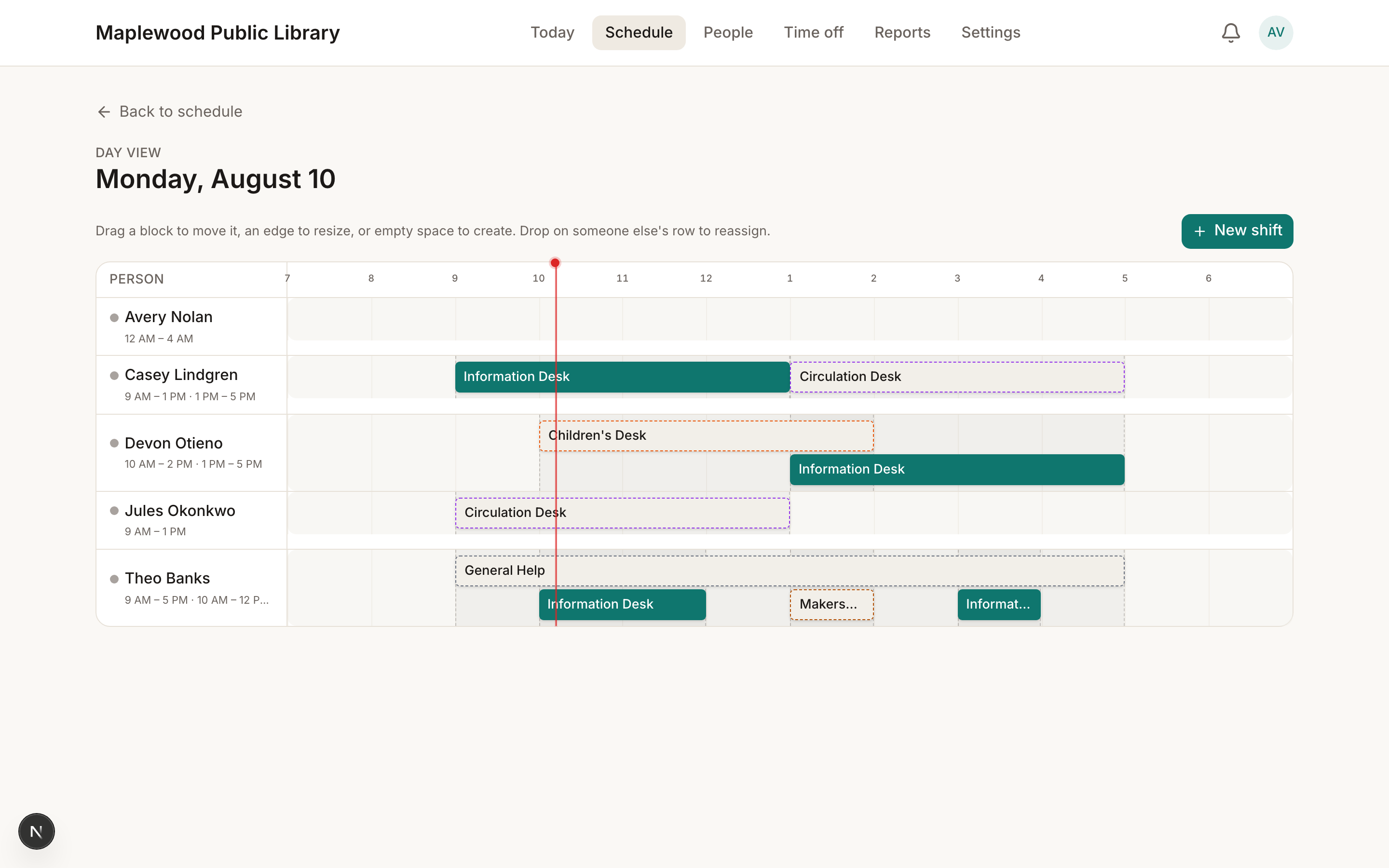
The four drags
- Move — drag a shift block left or right on its own row to change its time.
- Resize — drag either edge of a block to change when it starts or ends. Snaps to 15-minute marks.
- Create — drag across empty space on a row to lay down a new shift there.
- Reassign — drag a shift block down (or up) onto a different person's row. It hands off to them and retimes to wherever you drop it.
Tip
Reassigning this way is usually the fastest move when someone calls out: find their shift, drag it onto whoever's covering, done. See How do I put a different person on a shift? for the dropdown alternative, which still works too.
When a drop double-books a desk
If dropping a shift would put two people on the same desk at the same time, Day view doesn't block the drop — it flags it. A banner appears with two choices:
- Bump — the new assignment takes the desk; the one it collided with is removed.
- Keep both — both assignments stay, desk double-booking and all. Sometimes that's genuinely what you want (training, a handoff overlap), so Day view leaves the call to you instead of guessing.
Note
This only checks the desk, not the person. Scheduling someone twice at the same time is caught separately, the same way it is everywhere else on the schedule.
Where it doesn't apply
Day view is a phone- and desktop-friendly view, but the drag gestures themselves need a mouse or a touchscreen with room to drag — on a small phone screen, tapping a shift still opens the regular edit dialog as a fallback. The week grid itself doesn't drag; it stays click-to-fill, which is still the fastest way to scan a whole week at once. Use Day view when you're focused on one day and want to move things quickly.