How do I set up multiple library locations?
Last updated September 18, 2026
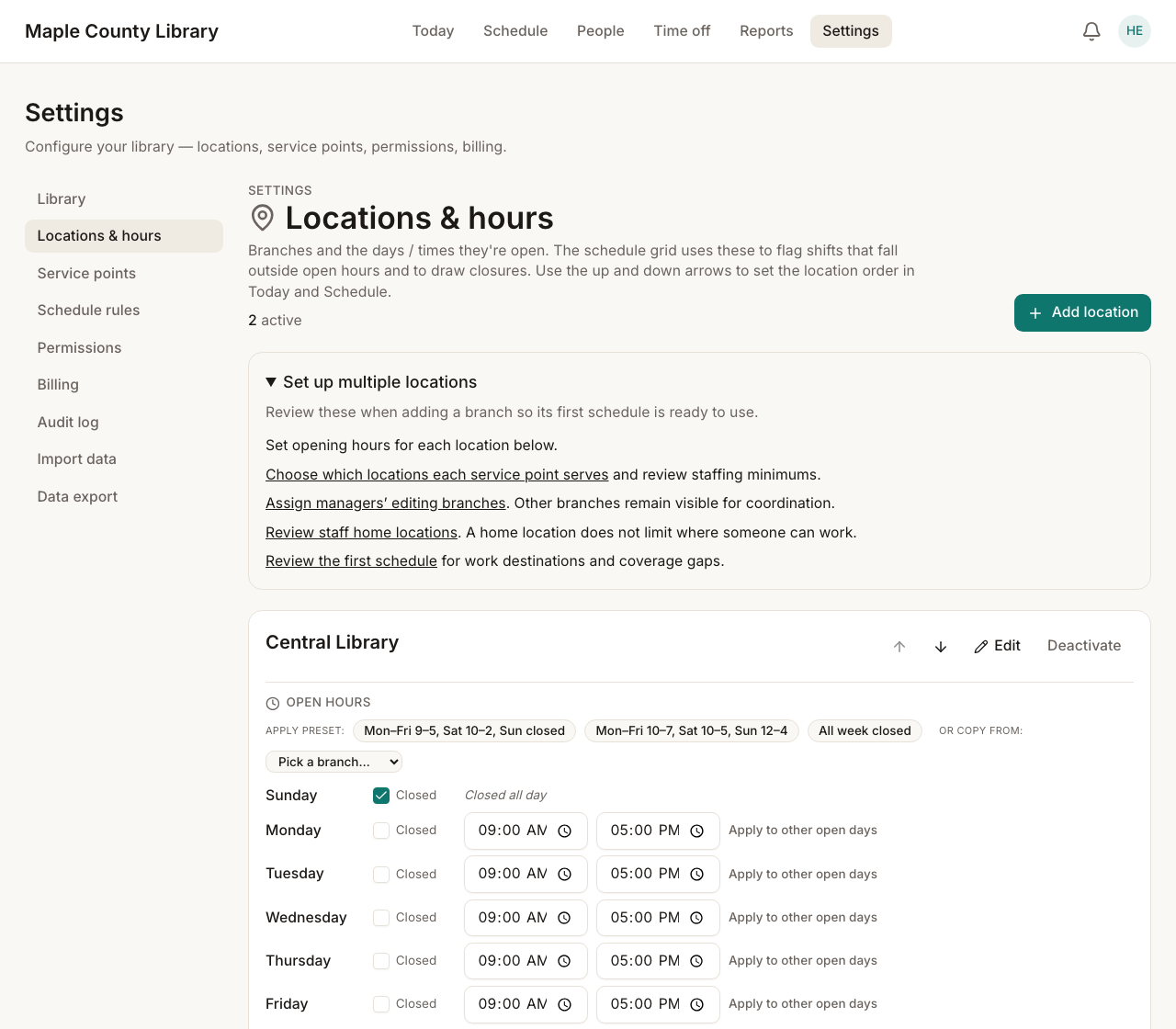
Set up each library under Settings → Locations & hours, then connect its service points, staff, and managers.
You need an Owner or Admin role to manage this setup.
- Open Settings → Locations & hours and add the location.
- Set its opening hours for each day. Mark days it does not open as closed.
- In Settings → Service points, review which locations each service point serves and its staffing minimums.
- Invite your managers and choose their editing branches. A manager can be responsible for one branch or several.
- In People, review each person's Home location.
- Open Schedule and check that shifts are assigned to the location where the work happens.
Home location, work location, and editing access
These settings answer different questions:
| Setting | What it means |
|---|---|
| Home location | Where a staff member is usually based. It helps organize the roster. |
| Work branch | Where a shift or part of a shift takes place. This is what the scheduling branch filter follows. |
| Branches this manager can edit | Where a manager has permission to make scheduling changes. |
Someone based at Central can work a shift at Riverside. Changing their home location does not automatically change their shifts or their manager permissions.
Put locations in the order you use them
Use the up and down arrows in Settings → Locations & hours to reorder active locations. That order appears in Today and Schedule for the library. Collapsing a location on Today is a separate, personal preference.
What if we only have one active location?
The main Today and Schedule screens keep the simpler layout when there is just one active location. Deactivated locations and old saved filters do not, by themselves, turn on the multi-location layout.
Historical work at an inactive location remains accessible. Looking at dates with that work, or opening an explicit branch link, can still show branch sections.